FPN for Object Detection

My notes of reading this paper.

FPN stands for Feature Pyramid Network, used for improving Object Detection.

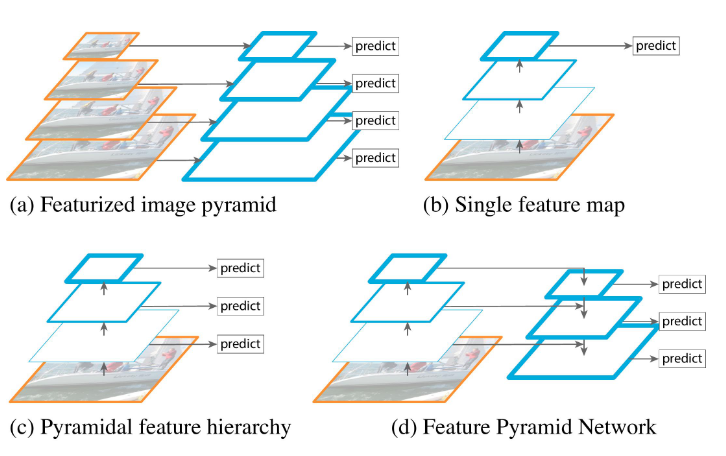
One traditional way to do Object Detection is to use sliding window with multiple window sizes which is in (a). However this method is slow and computational intensive. (b) and (c) are mentioned for approaches that used by others to overcome the disadvantage of (a).

The author also mentioned that a deep ConvNet can generate multiple scale features by sampling. However these feature maps for different spatial resolutions have large gaps which can harm the result.

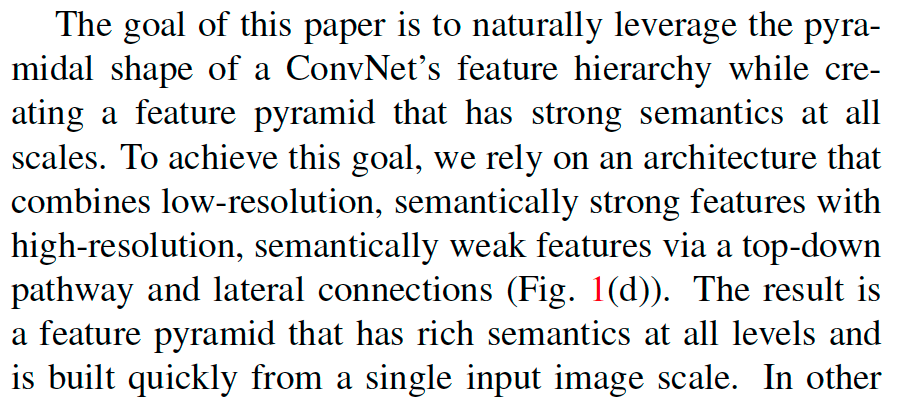
(d) is the method this paper is promoting.

Resolution and semantic of feature :

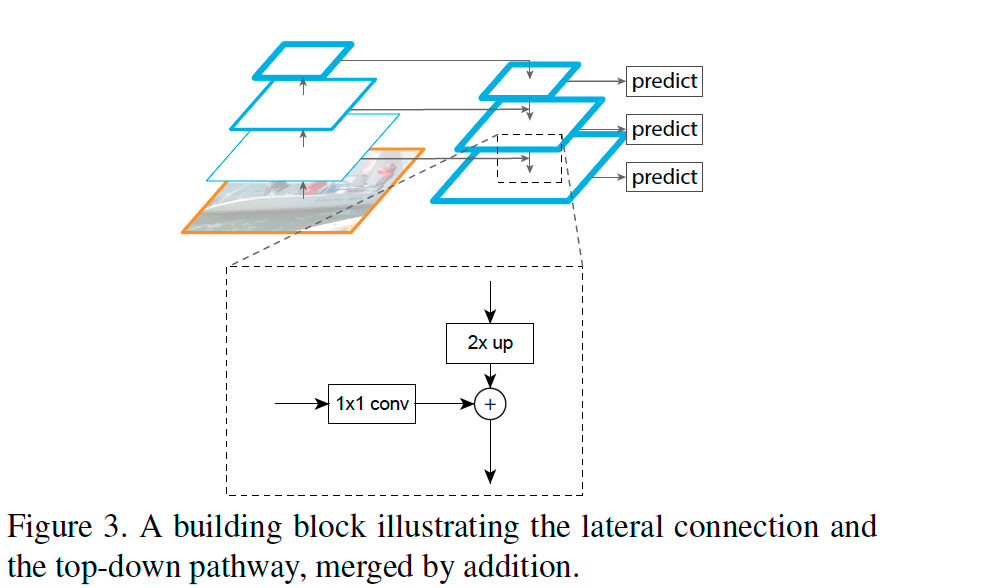
Bottom-up, up-down path way and lateral connections

Bottom-up pathway is a regular ConvNet backbone with scale step=2(ResNet here), Up-down pathway is scaling up with step size=2 (with nearest neighbor upsampling).

When adding the Bottom-up layer to the Up-down layer, the Bottom-up layer on the left has x2 times more channels, so it uses Conv 1×1 to reduce channel number to add the layer on the right by element wise. The up-down layer on the right has to upsample (x2) to match the hight and width of the left. The upsample can cause aliasing effect. Conv 3×3 is used to reduce this aliasing effect.

Code can find found here. Also thanks to this video for better understanding.

Nested X Server

Use Xephyr to run a second X window with 8bit color depth in Raspberry Pi
https://nims11.wordpress.com/2012/06/24/nested-x-servers-with-xephyr/

Xephyr -ac -screen 800x600x8 -reset :1 &

This will open a blank window
In the original window, type
DISPLAY=:1

Then run the C program. It show “Colomap_size: 256”.
It worked!

Flash Nexus 5 with Android 6.0.1 and root

Rooted my Nexus 5 android following this instruction.

1. Backup the phone (Rooting will erase all setting and personal files on the phone & SD card)

2. Enable USB debugging:
Go to phone’s Setting -> About Phone, then keep tapping on “Build Number” until it shows “You are now a developer”

3. Unlock the bootloader & Flash Nexus 5 with the factory image

  • connect the phone to Mac by USB cable
  • Boot into Fastboot mode by “Volume Up + Volume Down + Power”
  • download the image.
    Factory images can be found here.
    Extract the downloaded file hammerhead-mob30y-factory-7f05cd7f.tgz
  • According to the instructions, normally running ./flash-all.sh will be enough. However this version might have a problem which cause the reboot after this stucks (or maybe just takes really long to boot up). The following way, which is to manually running the scripts, seemed helpful.(Found the solution from here)
  • Open a terminal on my MAC and ran the following commands,

    fastboot oem unlock
    fastboot erase boot
    fastboot erase recovery
    fastboot erase system
    fastboot erase userdata
    fastboot erase cache

    fastboot flash bootloader bootloader-hammerhead-hhz20h.img
    fastboot reboot-bootloader

    fastboot flash radio radio-hammerhead-m8974a-2.0.50.2.29.img
    fastboot reboot-bootloader

    fastboot flash boot boot.img
    fastboot flash recovery recovery.img
    fastboot flash system system.img
    fastboot flash userdata userdata.img
    fastboot flash cache cache.img
    fastboot reboot-bootloader

    4. Get Android-studio from here
    twrp from here. This is a better recovery tool.
    SuperSu from here

    5. Install custom recovery
    Go to directory which contains the Andriod-studio files (on Mac)
    #which fastboot
    /Users/myuser/android-sdk/android-sdk-macosx/platform-tools/fastboot
    #cd /Users/myuser/android-sdk/android-sdk-macosx/platform-tools/fastboot
    #fastboot flash recovery twrp-3.0.2-0-hammerhead.img
    #fastboot reboot-bootloader
    Power-off the phone and enter the Fastboot mode again, switch to Recovery mode and proceed, then the custom recovery will be shown.

    6. Root the phone
    On Mac terminal:
    #adb push UPDATE-SuperSU-v2.76-20160630161323.zip /sdcard/
    Boot the phone into Fastboot mode then switch to recovery mode as before.
    Click on install, then choose SuperSu zip file and click “Install image”.
    Reboot.

    7. The phone couldn’t get connection from carrier(Sprint) after the changes above, ran the following code on the dial pad, then the problem got fixed.

    *#*#72786#*#*

  • Setup AWS API tool

    Setup AWS API tool

    Download API tool
    wget http://s3.amazonaws.com/ec2-downloads/ec2-api-tools.zip
    unzip ec2-api-tools.zip -d /usr/local/ec2

    Where is Java?
    which java
    file /usr/bin/java
    file /etc/alternatives/java
    /usr/lib/jvm/jre-1.x.0-openjdk.x86_64/
    User this path for the config

    Setup env
    vi ~/.bash_profile

    export JAVA_HOME=”/usr/lib/jvm/jre-1.x.0-openjdk.x86_64/”
    export EC2_HOME=”/usr/local/ec2/ec2-api-tools-1.7.3.0″
    export AWS_ELB_HOME=”/usr/local/ec2/ElasticLoadBalancing-1.0.35.0/”
    export PATH=$PATH:$EC2_HOME/bin:$AWS_ELB_HOME/bin
    export aws_access_key_id=”AAAAAAAAAAAAA”
    export aws_secret_access_key=”KKKKKKKKKKKKKKKKKKKKKK”
    export EC2_URL=”https://ec2.us-west-1.amazonaws.com:443″

    Bash scripts

    Change upper case to lower case

    #echo ‘TEST’|/usr/bin/tr -s ‘[:upper:]’ ‘[:lower:]’
    test

    Work with array

    IFS=$’\n’ ##here tells how to devide the output, default is space
    ##but I want to put each line into a array
    files=($(ls ./) ##put file names into an array using ()
    for (( i=0;i<${#files[@]};i++ ));do mv $files[$i] $files[$i]_OLD done

    Match pattern

    if [[ $string =~ “data” ]];do
    echo “$string contains data”
    done

    Enable status in PHP-fpm + Nginx

    It was a little bit confusing to set it up. So here’s the memo.

    vi /etc/php5/fpm/pool.d/www.conf

    pm.status_path = /status
    listen = 127.0.0.1:9000

    vi /etc/nginx/sites-available/monitor
    location ~ ^/(status|ping)$ {
    include fastcgi_params;
    #access_log off;
    allow 127.0.0.1;
    allow xx.xx.xx.xx;
    deny all;
    fastcgi_param SCRIPT_FILENAME /status;
    fastcgi_pass 127.0.0.1:9000;
    }

    Restart nginx and php-fpm processes.

    Ref: Here

    Resize root partition of a virtual machine on VMware

    When it comes to a situation that the disk space is not enough on a virtual machine, it’s easy to extend the disk space if it’s on LVM, even the /root partition.

    This post is very helpful.

    For my own memo:
    Case:
    VM on VMware, installed with CentOS 6.x
    #fdisk -l shows
    Disk /dev/sda: 12GB ….
    /dev/sda1 2 501 512000 83 Linux
    /dev/sda2 502 12288 12069888 8e Linux LVM

    On /dev/sda2
    Disk /dev/mapper/vg_node1-lv_root: 7.5 GB
    Disk /dev/mapper/vg_node1-lv_swap: 4 GB

    Goal: Add 8G extra space to /dev/mapper/vg_node1-lv_root

    Steps:
    1. Using VMware GUI to add 8G to the virtual machine. Make sure it recognizes the new size.

    2. Memo the current cylinder start number of /dev/sda2
    /dev/sda2 502 12288 12069888 8e Linux LVM

    3. Delete partition /dev/sda2 then recreate it with the new size
    fdisk /dev/sda
    Use command “d”, then “2” to delete /dev/sda2
    Use “n” to create a new partition, partition number is “2”
    Use “t” to change partition type to 8e as “Linux LVM”
    Then “w” to save the change

    Reboot the VM

    Now the partition size is changed. I need to change the pv size and vg size.

    5. Change pv size
    pvsize /dev/sda2

    6. Change vg size
    #vgdisplay (found the free PE = 2048 )
    #lvextend /dev/mapper/vg_node1-lv_root –extents +2048

    7. Still need to increase file system size
    #resize2fs /dev/mapper/vg_node1-lv_root

    ————————————————————————-
    Another way to do it

    1. Add disk space from vmware GUI, however the following command didn’t work, so reboot
    echo “- – -” > /sys/class/scsi_host/host0/scan

    2. frisk -l shows new disk space on /dev/sda
    create a new partition on /dev/sda
    frisk /dev/sda -> n -> p -> 3 -> it will show the right start/end block number automatically, so just hit enter,
    -> t -> 8e -> w

    3. fdisk shows /dev/sda3, the new partition created.
    However it warns the kernel won’t use the new table until reboot, so reboot for the 2nd time

    4. Create a new physical volume on lvm using sda3
    pvcreate /dev/sda3

    5. find vg name from vgdisplay, find vg name is using “centos”, add sda3 to virtual group
    vgextend centos /dev/sda3

    6. pvscan shows sda3 as a member of vg “centos”
    [root@mononoke ~]# pvscan
    PV /dev/sda2 VG centos lvm2 [15.51 GiB / 0 free]
    PV /dev/sda3 VG centos lvm2 [9.00 GiB / 0 free]
    Total: 2 [24.50 GiB] / in use: 2 [24.50 GiB] / in no VG: 0 [0 ]

    7. lvdisplay shows 2 logical volumes, /dev/centos/root and /dev/centos/swap,
    lvextend /dev/centos/root /dev/sda3

    8. resize file system, since it’s using XFS on centos7,
    xfs_growfs /dev/centos/root

    Here‘s the reference

    ——————————————————-
    To check how much free space left in a physical volume, do pvdisplay, then find value of “Free PE”

    — Physical volume —
    PV Name /dev/sdb2
    VG Name test_vg
    PV Size 20.00 GiB / not usable 1.31 MiB
    Allocatable yes
    PE Size 4.00 MiB
    Total PE 5120
    Free PE 2620
    Allocated PE 2500

    Check Linux server status

    vmstat, iostat, top…etc are useful to check server load, I/O or memory usage.

    iostat
    r/s and w/s
    the number of read and write requests sent to the device per second
    await
    the number of requests waiting in the device’s queue
    svctm
    the number of miliseconds spent servicing requests, from beginning to end
    util
    the percentage of the device utilization

    vmstat
    procs
    r: processes are waiting for the CPU time
    b: processes are in sleep (means they are waiting for I/O)
    io
    bi/bo: how many blocks reading in/out the device
    system
    in: number of interrupts per second
    cs: context switches per second

    Here are some good sites showing how to use them

    http://www.cyberciti.biz/tips/linux-disk-performance-monitoring-howto.html
    http://www.cyberciti.biz/tips/how-do-i-find-out-linux-cpu-utilization.html
    http://www.linuxforums.org/articles/using-top-more-efficiently_89.html
    http://software.intel.com/en-us/blogs/2011/02/09/using-linux-top-to-troubleshoot-multi-core-scalability-issues-at-dreamworks-animation/

    Good article about I/O scheduler
    http://www.linuxjournal.com/article/6931

    Create my own AWS AMI

    Followed this very detailed instruction to create my own CentOS5 AWS AMI image

    How to create an Amazon Elastic Compute Cloud EC2 Machine Image (AMI)

    Every thing went all right except the problem came when booting the image…it doesn’t boot.

    It seems that the kernel 2.6.16 is too old, so download 2.6.18 from Amazon Dev forum.
    Rebundled and registered the image with new kernel but still it doesn’t boot….
    The next thing I tried is to specify the kernel ID and RAM ID as the same ones which is used to bundle/upload AMI images, when bringing up the instance. It booted this time.

    Using the following way to convert the instance-store backed image to EBS backed image.
    Bring up a EBS volume and attach to this server,
    # mkdir /newos && mount /dev/sdf /newos
    # rsync -avHx / /newos
    # rsync -avHx /dev /newos
    # sync;sync;sync;sync && umount /newos
    Then create a snapshot of the volume.

    Use command line or aws admin console to register AMI
    Register the AMI
    # ec2-register -a x86_64 –block-device-mapping /dev/sda1=snap-2715c442::false –name mycentos5ebs_2012 –kernel aki-xxxxxx –ramdisk ari-xxxxxx -K pk-xxxxxxxxxxxxx.pem -C cert-xxxxxxxxxxxx.pem –region us-west-1
    IMAGE ami-xxxxxx
    (use the same aki-xxxxx and ari-xxxxxx as the original server used for creating image)

    Another issue:
    When running “yum update”, it shows error message for corrupted rpm db.
    It seems that rpm db is using Berkely DB and after tried to fix the db by
    rm -f /var/lib/rpm/__db*
    rpm –rebuilddb
    It still shows error “cannot open Packages index using db3”

    So initial the db by
    rpm –initdb
    then install the Base yum packages again
    yum -y groupinstall Base

    References
    http://www.howtoforge.com/kernel_compilation_fedora
    http://www.cyberciti.biz/tips/compiling-linux-kernel-26.html
    http://aws.typepad.com/aws/2010/07/use-your-own-kernel-with-amazon-ec2.html
    http://docs.amazonwebservices.com/AWSEC2/latest/UserGuide/UserProvidedkernels.html
    http://www.ibm.com/developerworks/linux/library/l-linuxboot/
    http://amazonaws.michael–martinez.com/
    http://www.ioncannon.net/system-administration/1205/installing-cent-os-5-5-on-ec2-with-the-cent-os-5-5-kernel/

    New VM network issum

    After brought up a new VM on VMware using CentOS template, I had problem to setup the network.
    “The network device eth0 seems missing” was shown when I tried to bring up eth0. But actually the system thought the device is eth2!

    Here is a good article showing how to fix this issue,

    Here